
Redmine Resource Planner
PlanningSee who is working on what, and who has room for more. Book people onto issues, meetings, training and leave on a drag-and-drop board, with capacity, overbooking and the weeks ahead worked out from your working hours, holidays and approved leave.
Multiple servers: $399
- Redmine
- 4, 5, 6 and 7
- Views
- Day, week, month, range
- Booking types
- 4 built in, plus your own
- Dashboard widgets
- 11
- Databases
- MySQL, MariaDB, PostgreSQL
- API
- JSON, API-key auth
Drag, drop and resize
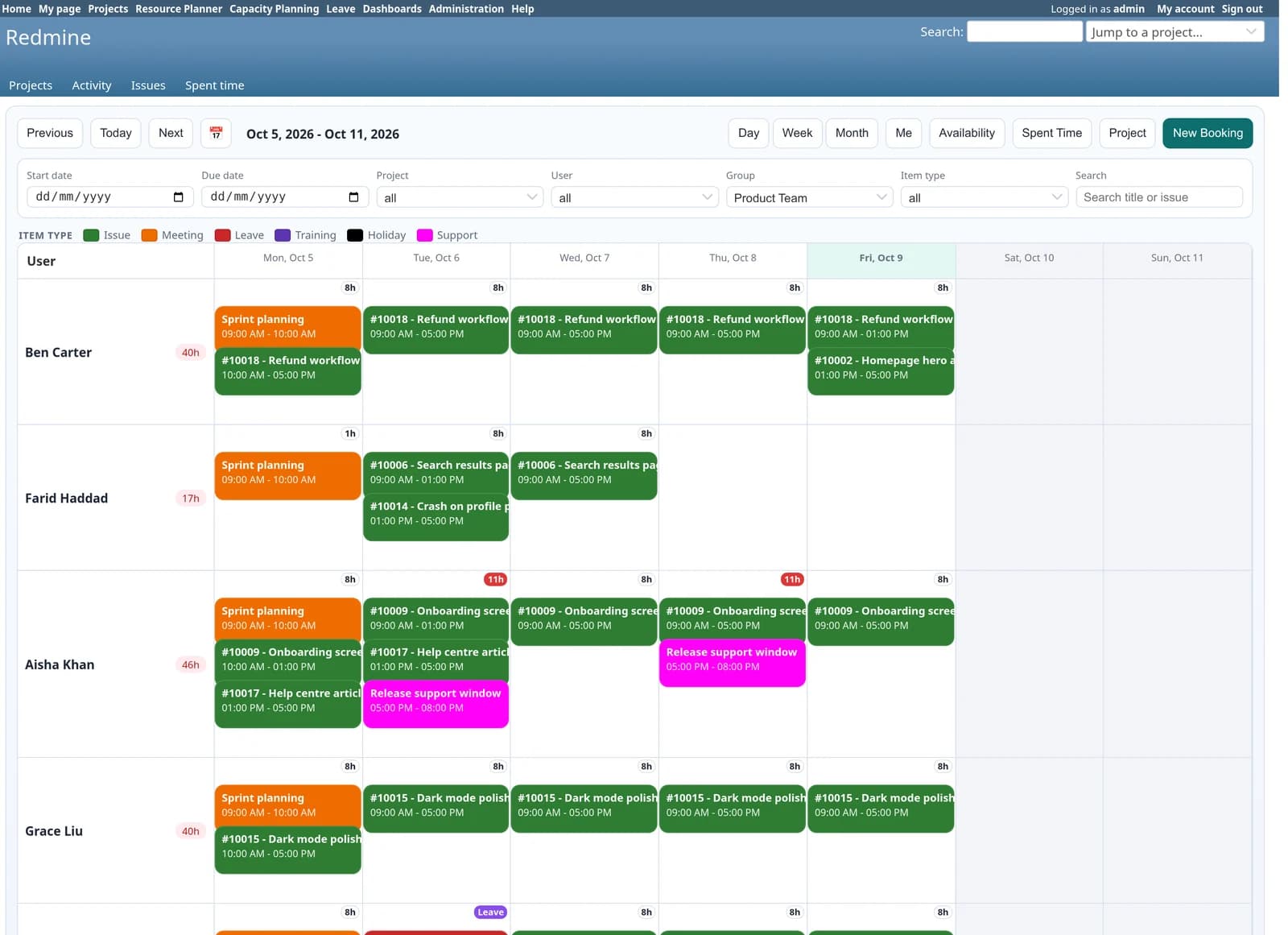
Move a booking to another day or another person, or drag its edge to make it longer. Day, week, month and date-range views, filtered by project, person, group or booking type.
Conflict detection
The plugin warns when a booking overlaps another one for the same person. Managers can override when it is intended, or you can allow overlaps altogether.
Recurring bookings
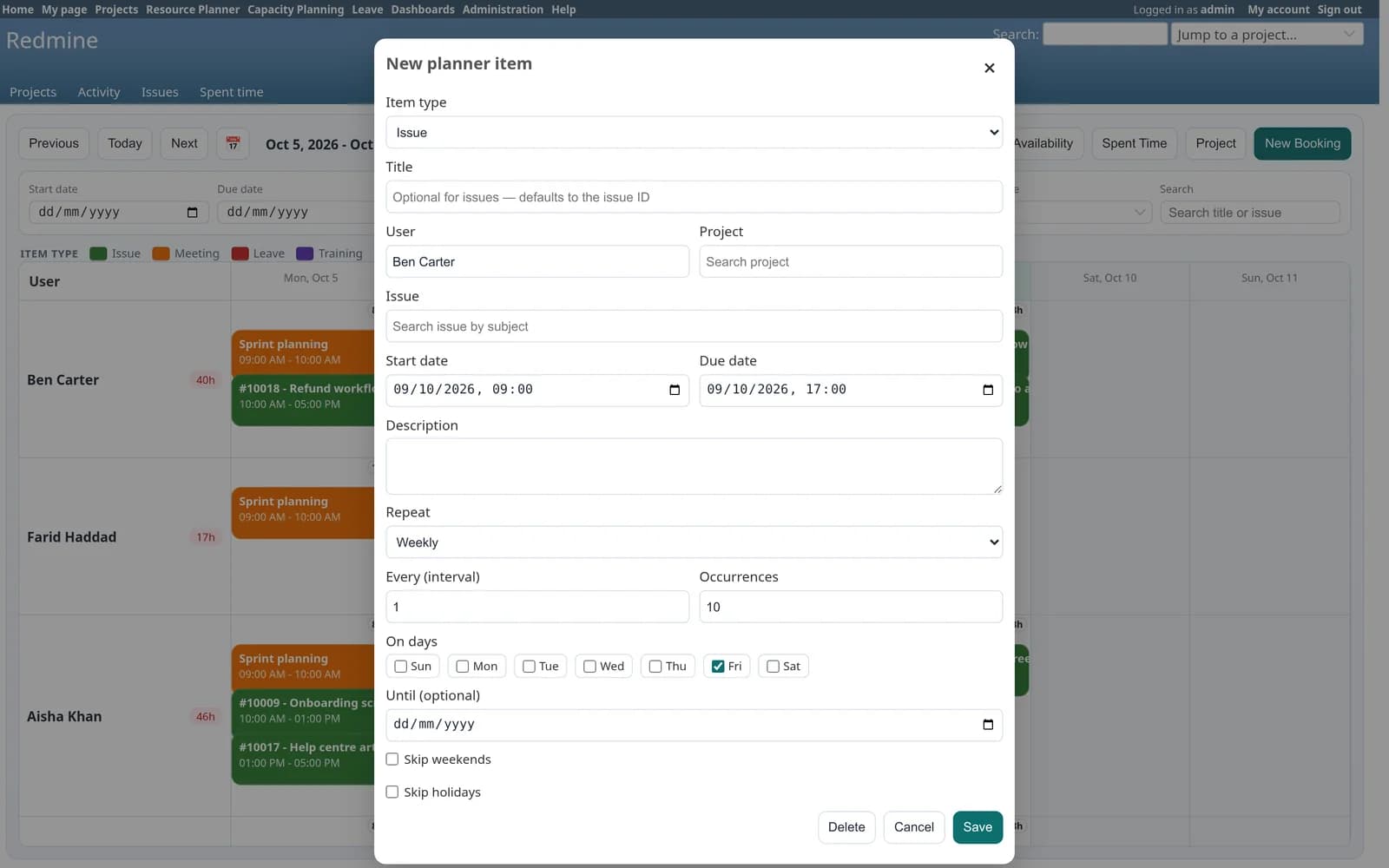
Daily, weekly or monthly, on the weekdays you pick, until a date or for a number of occurrences, skipping weekends and holidays if you want.
Capacity and forecast
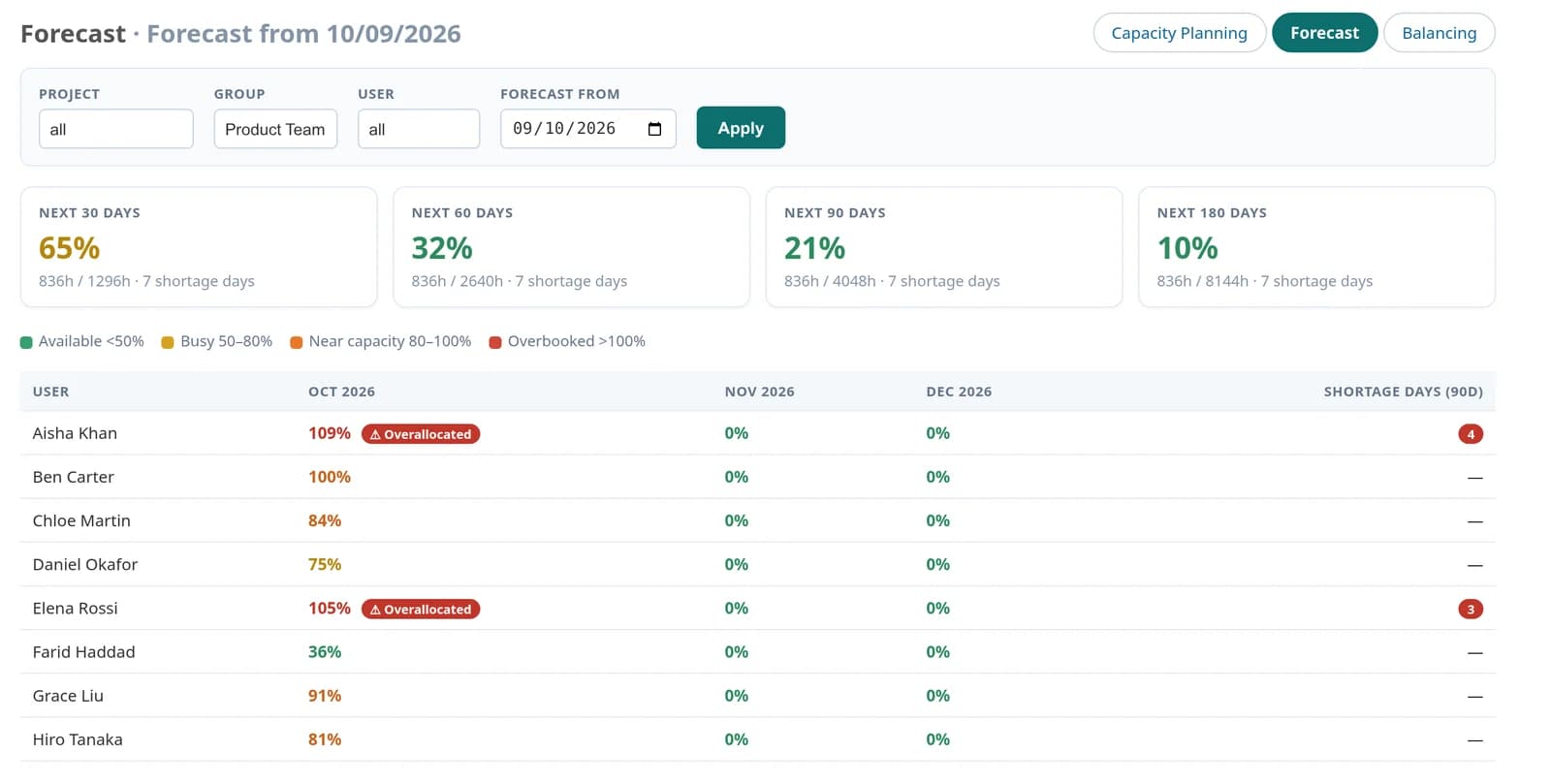
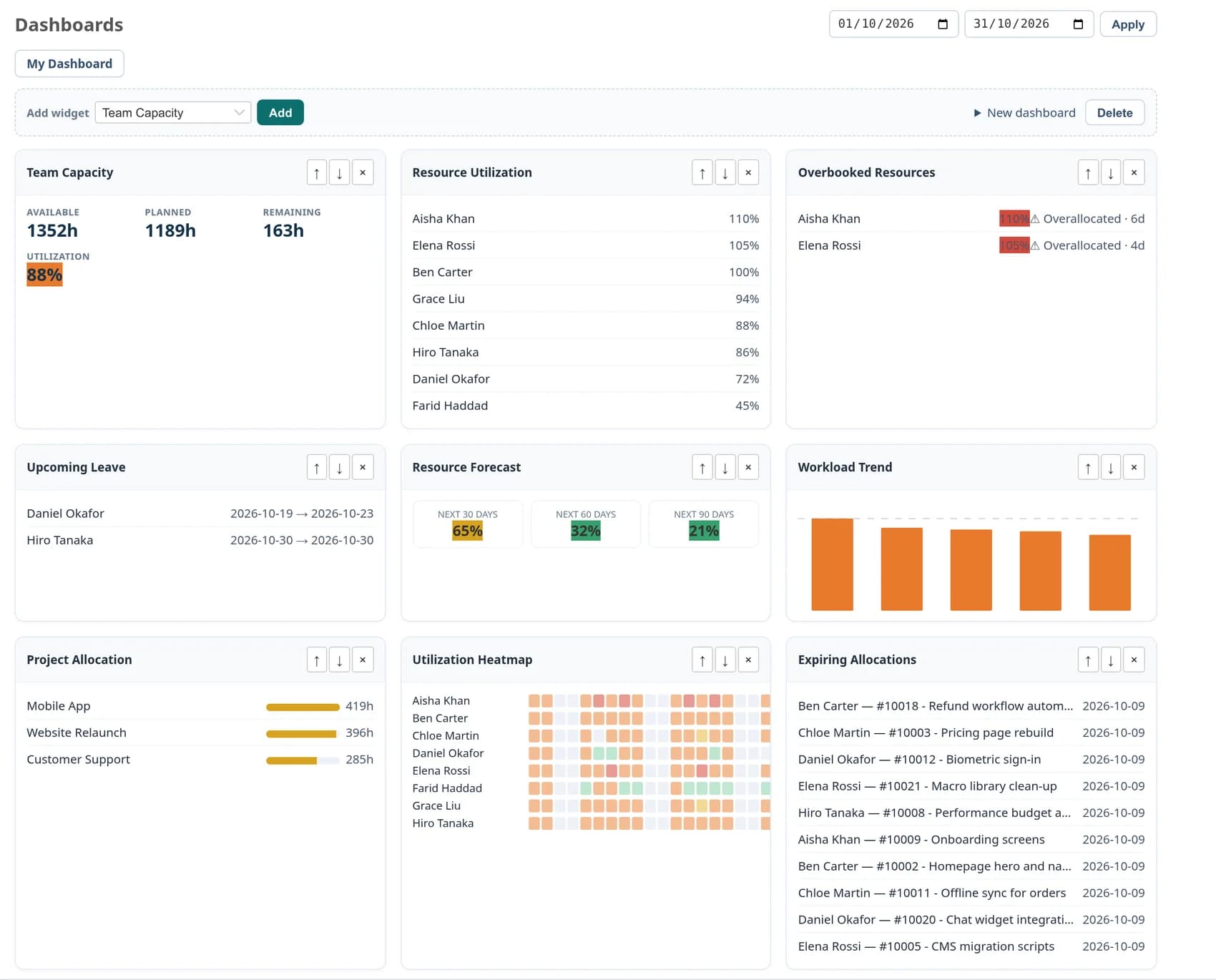
Available, planned and remaining hours for every person, with utilisation for the next 30, 60, 90 and 180 days and the days you will be short.
Leave the plan knows about
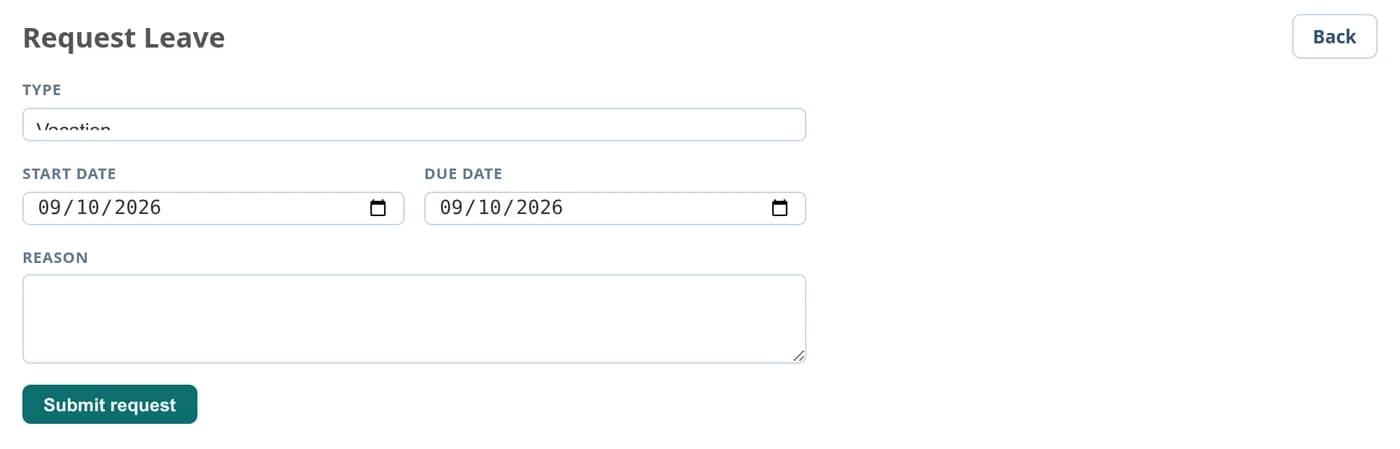
Anyone can request leave. Once a manager approves it, it appears on the board and the person’s capacity drops for those days.
Your users, projects and issues
Bookings sit on top of the Redmine data you already have. Issue bookings link back to the issue, and spent time comes from Redmine’s own time entries.
Holidays built in
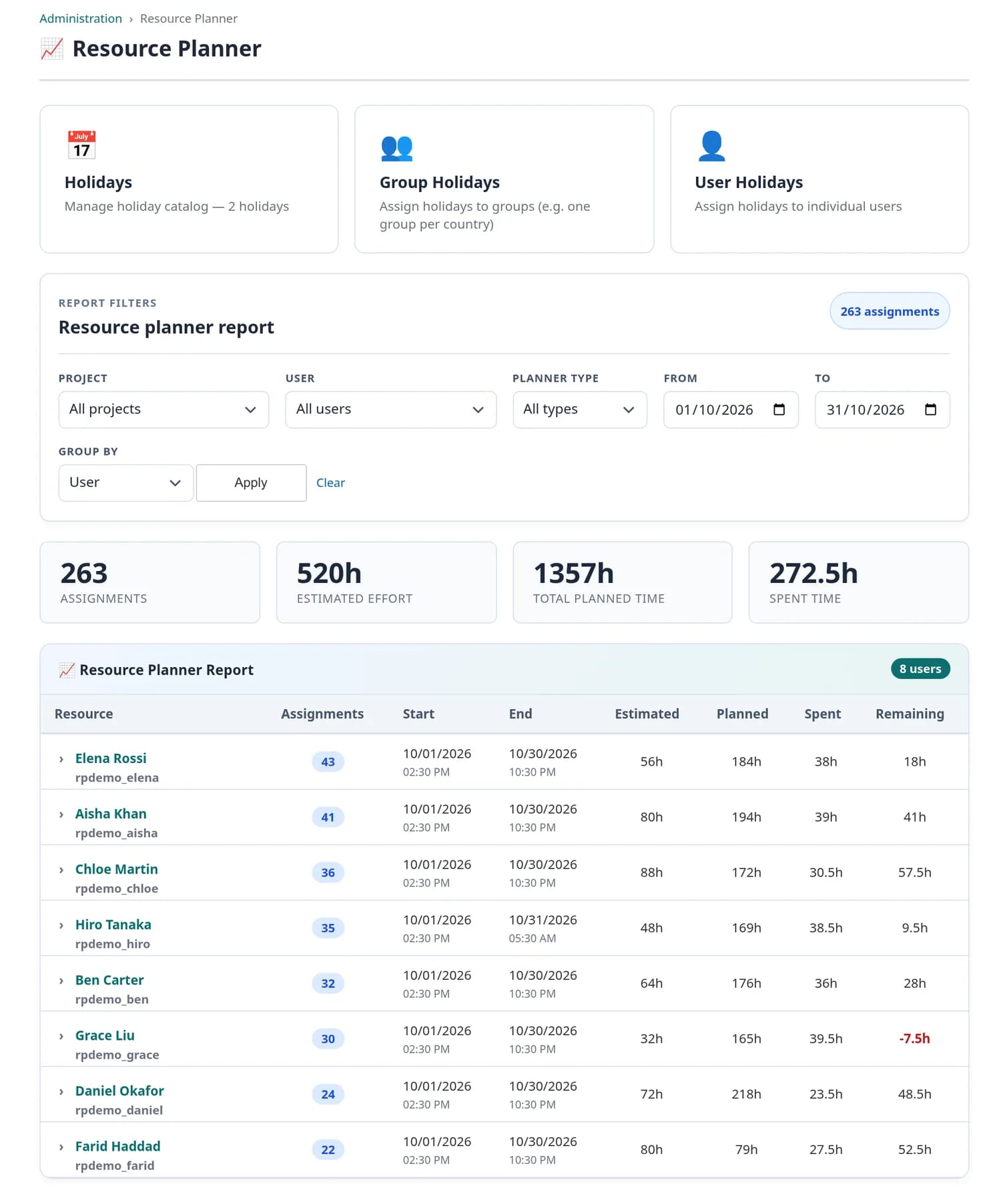
Add public holidays by hand or import them from CSV or Excel, per country, one-off or repeating every year. Assign them to groups or to individual people, and those days count as zero capacity.
From a booking to a forecast, with nothing entered twice
Bookings sit on top of the users, projects and issues you already have in Redmine. Everything else on this page is calculated from them.
1. Working time
Daily capacity, weekend days and public holidays, assigned per person or per group.
2. Bookings
Issues, meetings, training and your own types, placed on the board by drag and drop.
3. Leave
Requested by the employee and approved by a manager. Approved leave becomes a booking and removes capacity.
4. Capacity
Available, planned and remaining hours, utilisation and overbooked days for every person.
5. Forecast
Utilisation for the next 30, 60, 90 and 180 days, and the days you will be short.
One source of truth
Each step reads the one before it. Spent time comes from Redmine’s own time entries, issue bookings link back to the issue, and there is a global board, a project board and a personal “Me” calendar.
Already using another resource plugin?
We will help you migrate. Tell us which plugin you use today, and we will help you move your existing plan into Resource Planner, so your team does not have to start from an empty board.
The board your team will actually open every morning
These are real screens from the plugin on Redmine 6.1, with a demo team of eight people across three projects.
Plan: a month of work for the whole team
Switch between day, week, month or any date range. Filter by project, person, group, booking type, or search by title.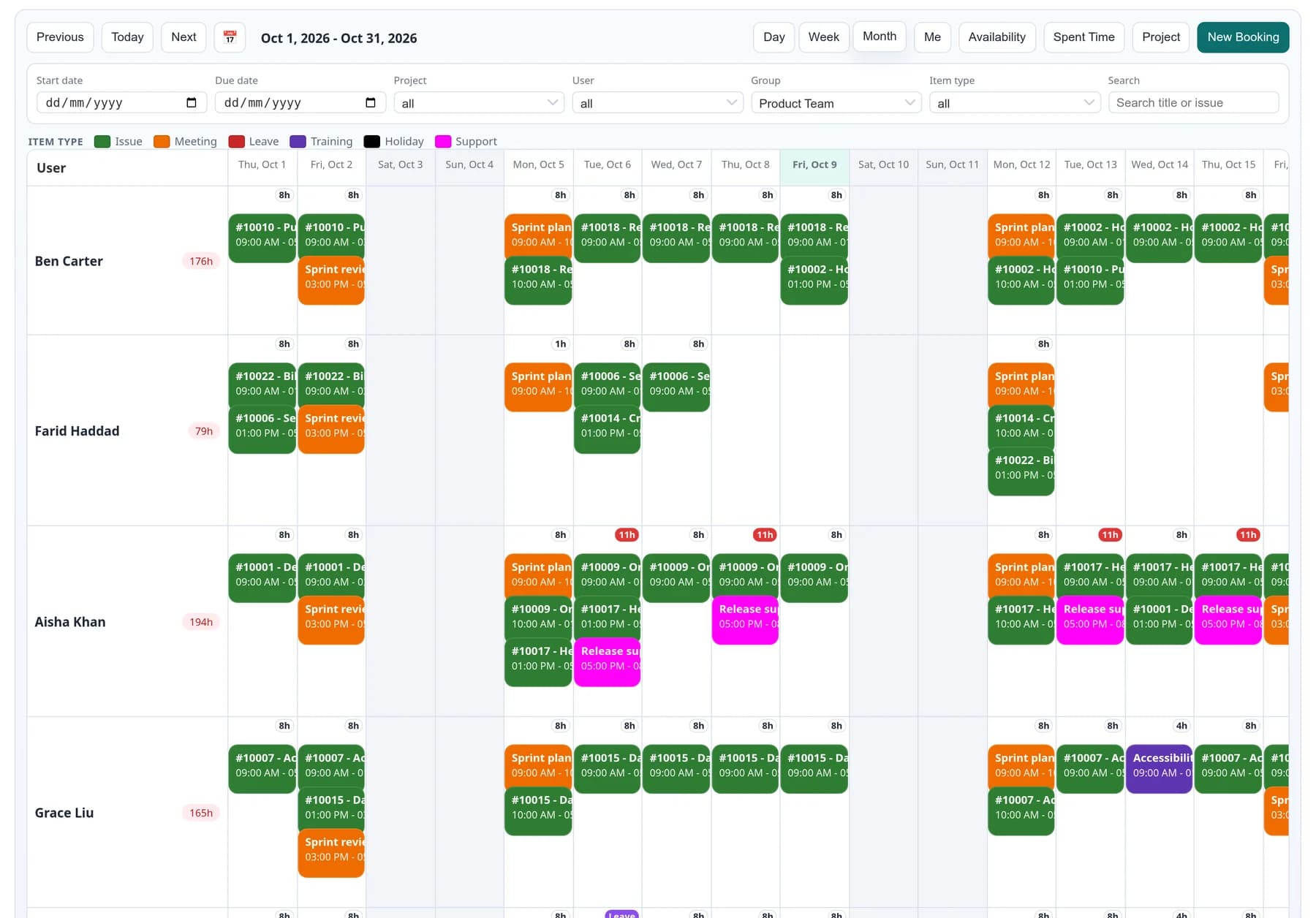
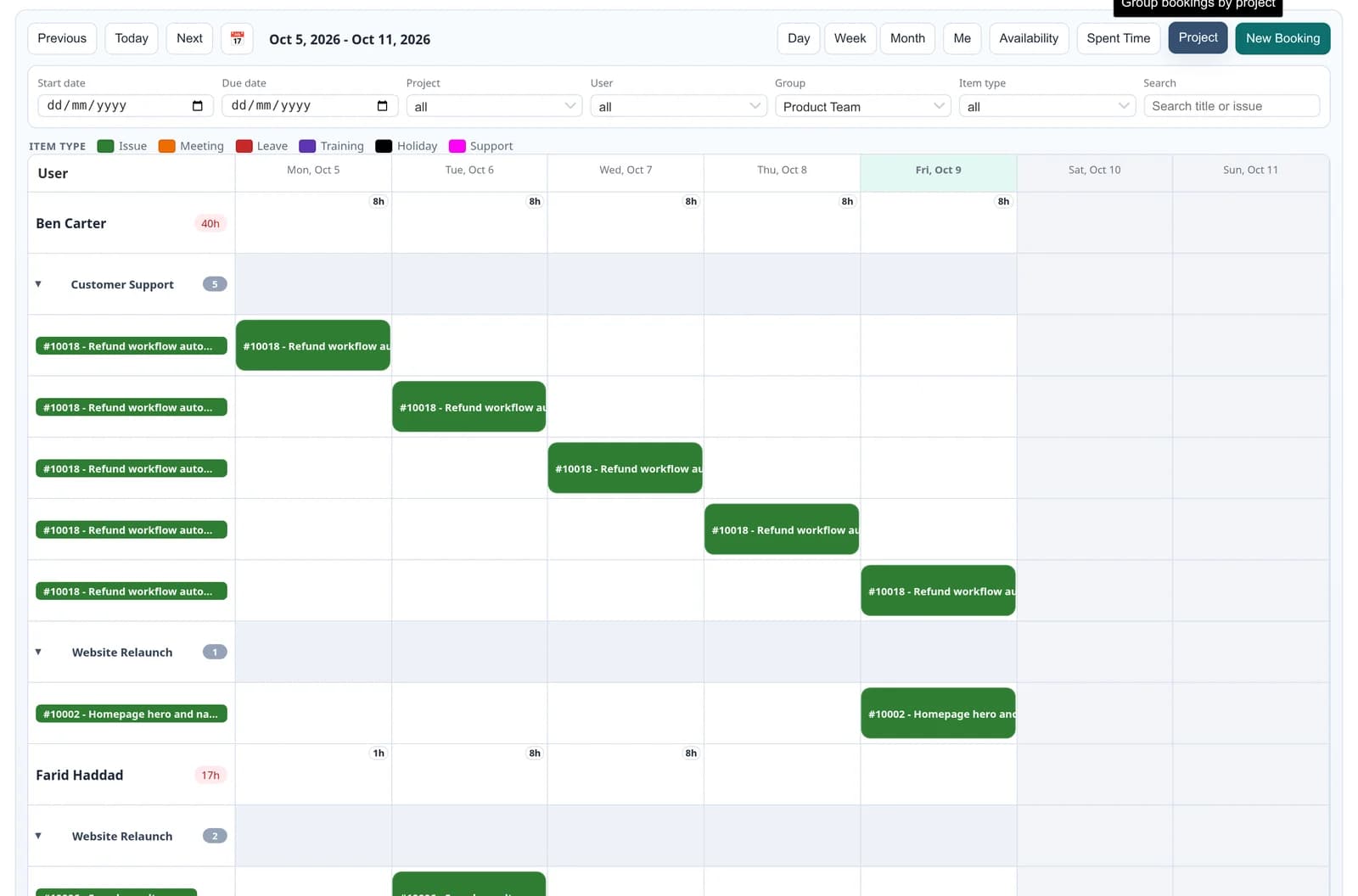
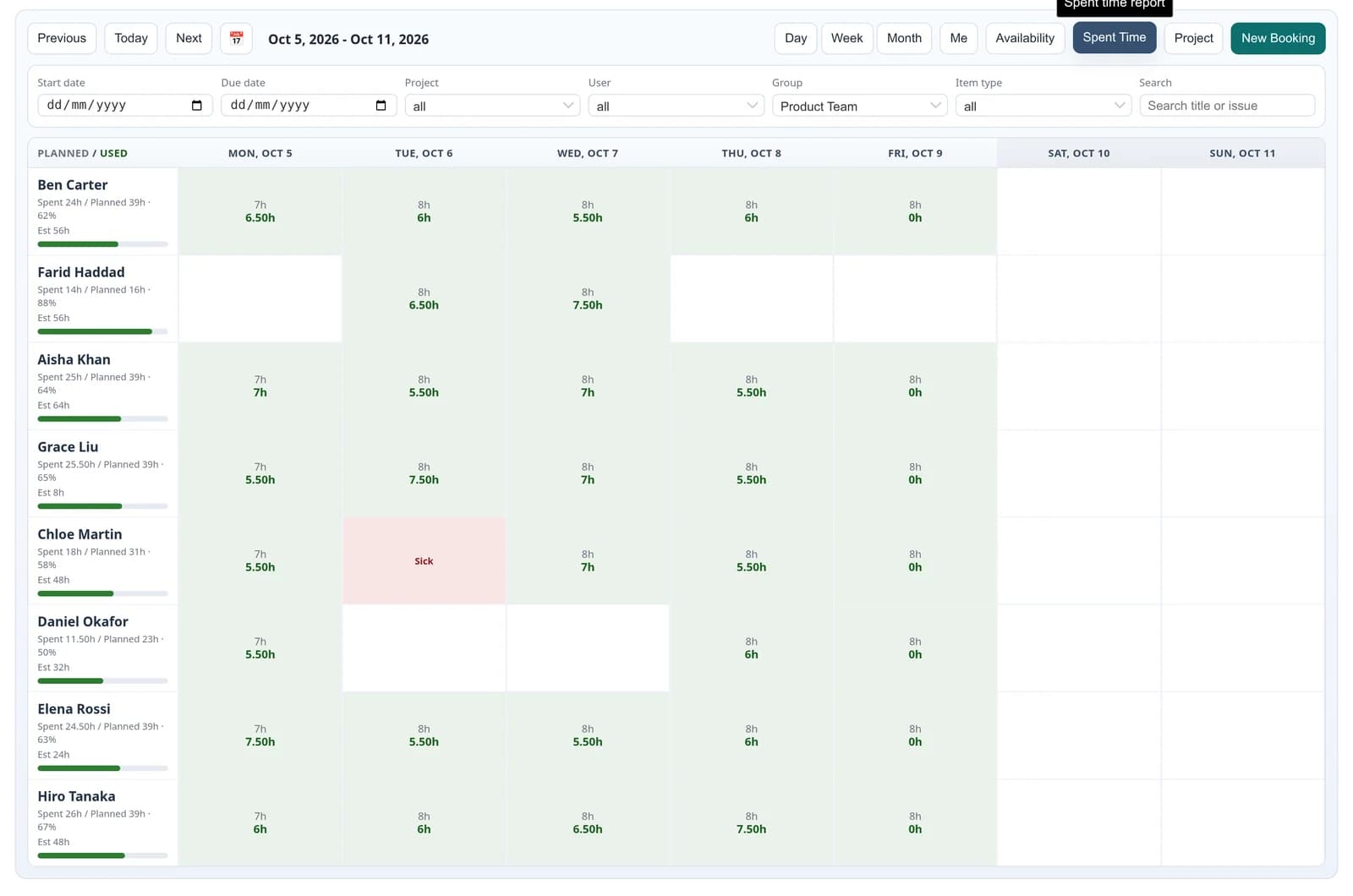
Check: who is free, and what was actually worked
Two more ways to look at the same week, one click away on the toolbar.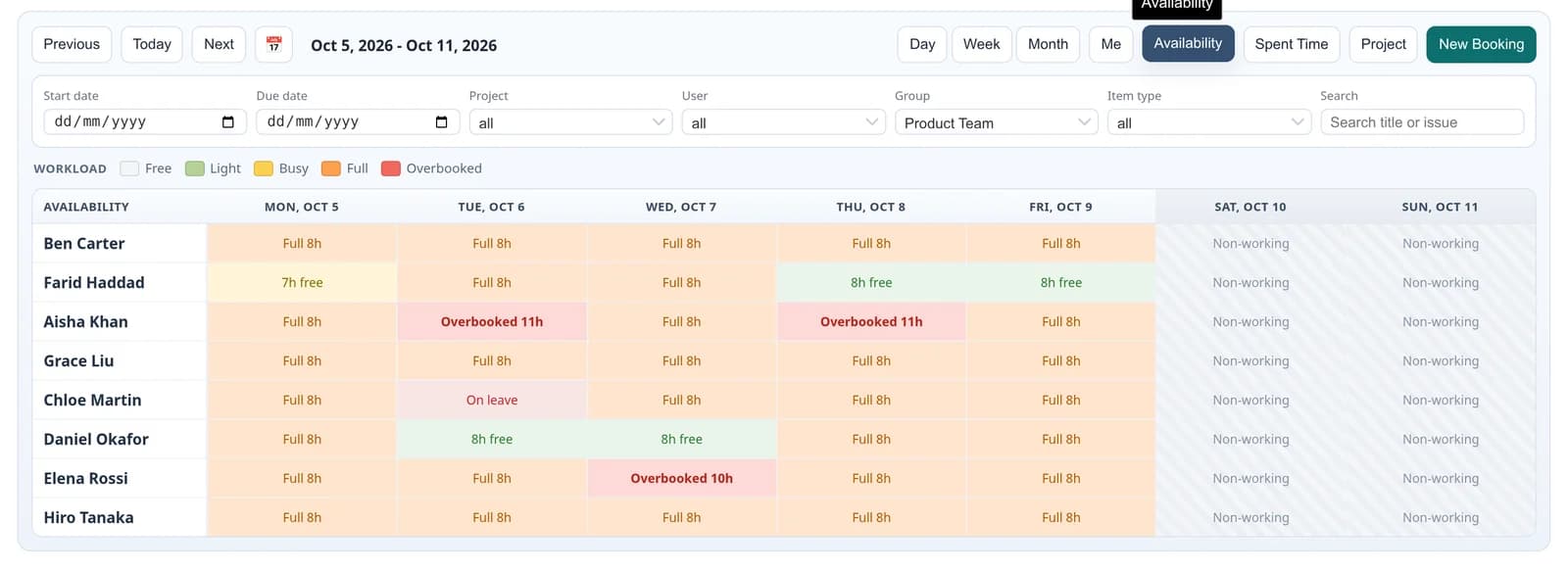
Balance: capacity planning and forecast
Capacity is working days times daily hours, minus holidays and approved leave. Bookings are counted against it.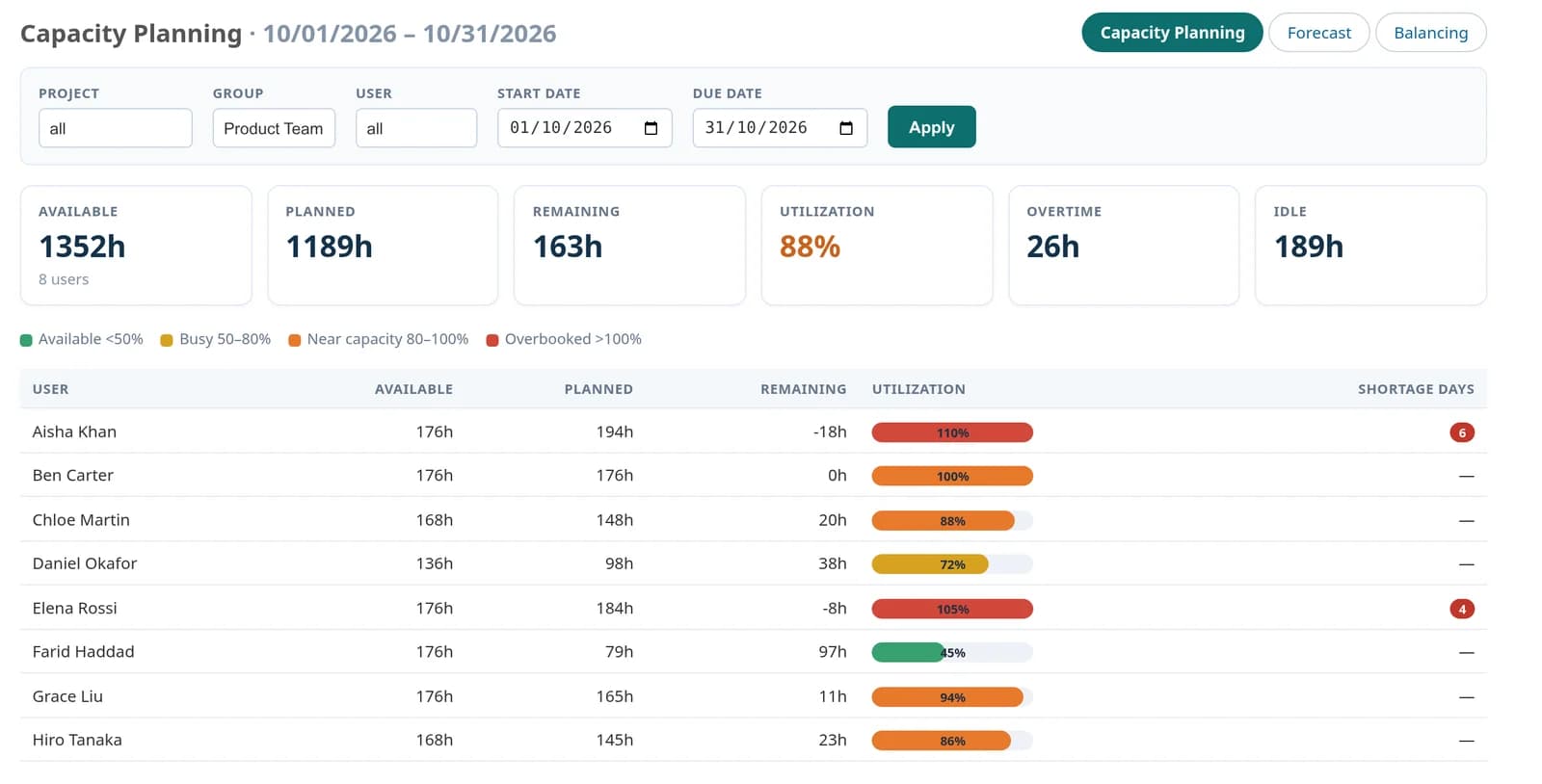
Leave: time off that the plan knows about
Anyone can request leave. Once a manager approves it, it appears on the board and the person’s capacity drops for those days.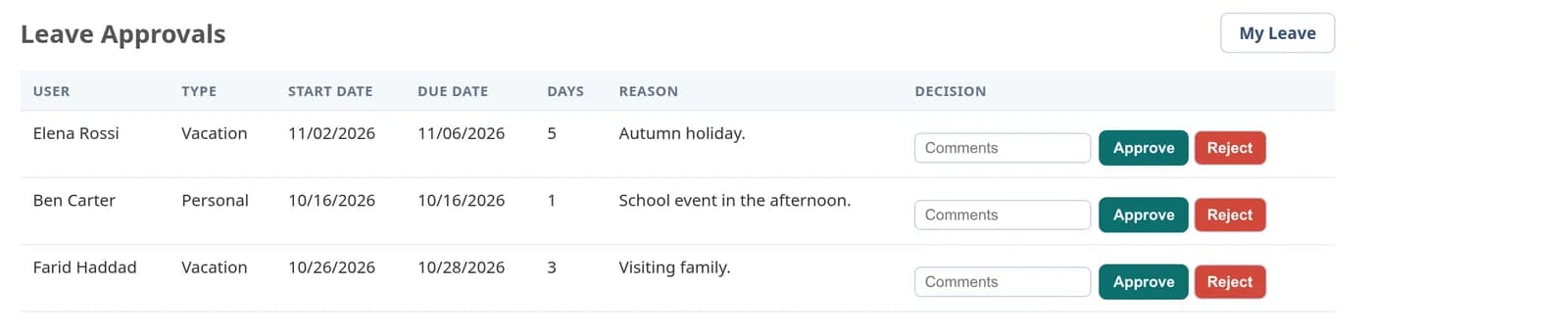
Administer: reports, holidays and settings
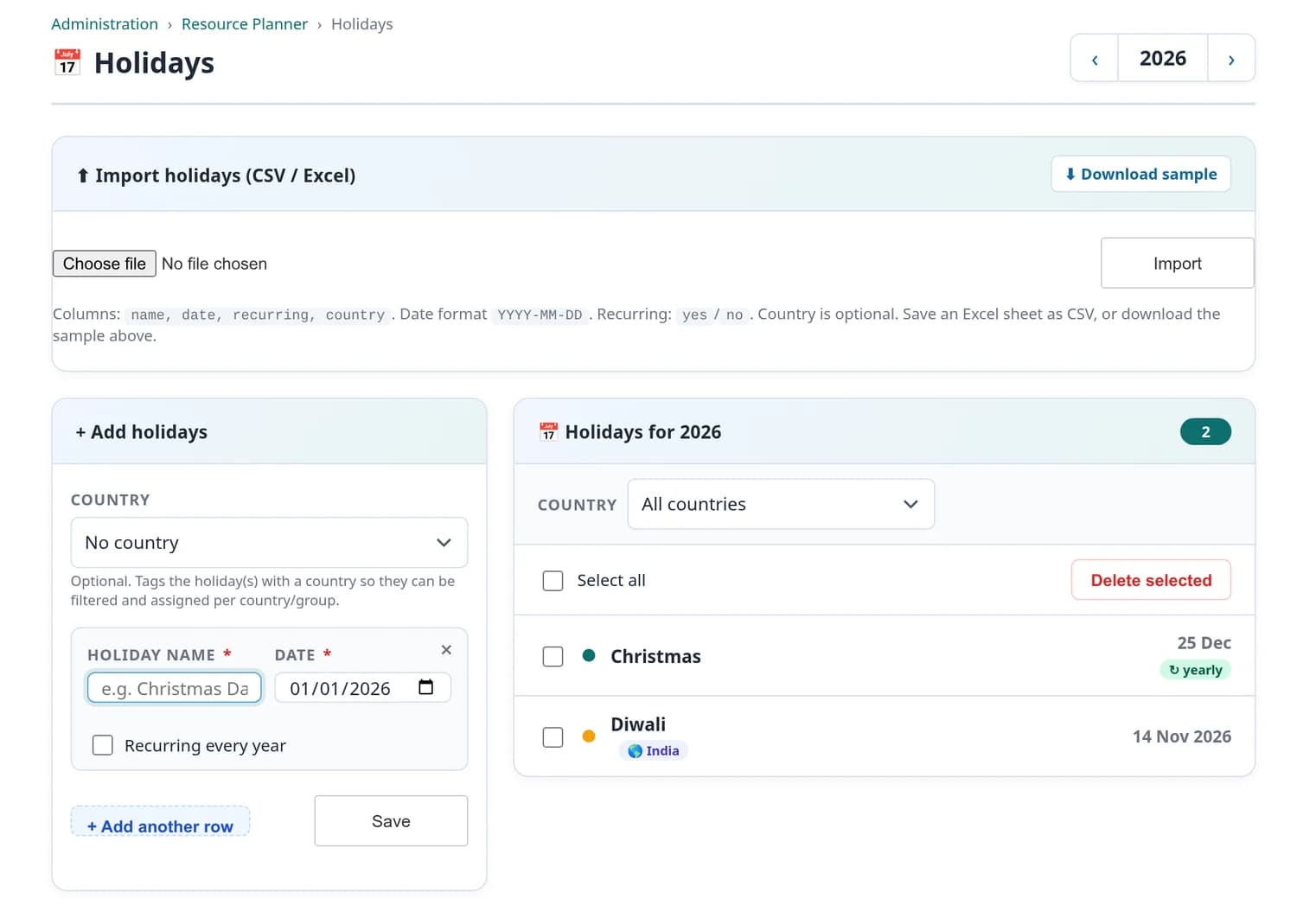
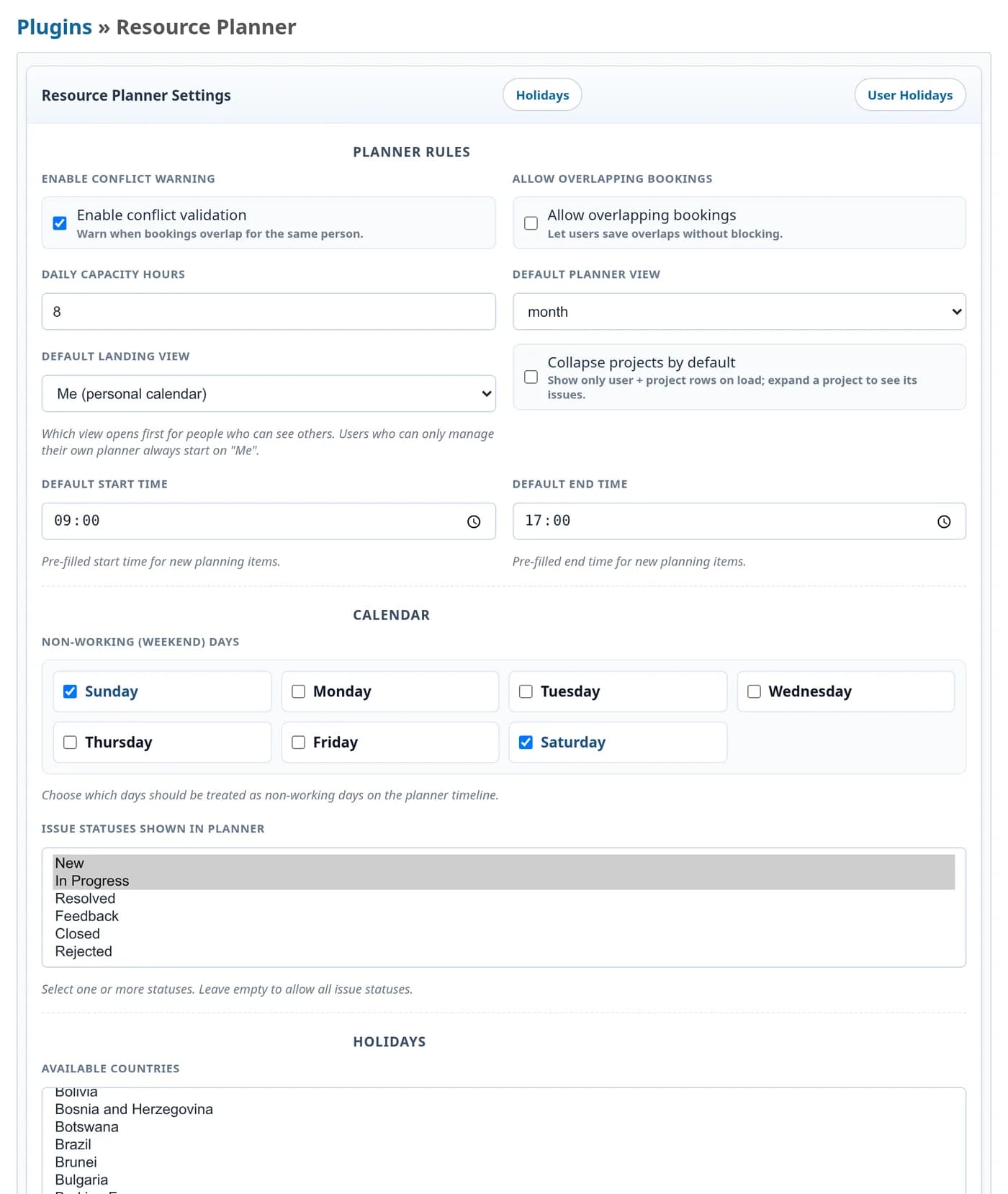
Planning that stays in step with the issue tracker
Drag, drop and resize
Move a booking to another day or another person, or drag its edge to make it longer. Select several and shift them together.
Conflict detection
The plugin warns when a booking overlaps another one for the same person. Managers can override when it is intended, or you can allow overlaps altogether.
Recurring bookings
Daily, weekly or monthly, on the weekdays you pick, until a date or for a number of occurrences, skipping weekends and holidays if you want.
Your own booking types
Issue, meeting, leave and training come built in. Add your own types, such as support or on-call, each with its own colour.
Workload balancing
When someone is overbooked, the balancing page suggests moving a booking to a colleague with free hours, or to a later date. Nothing changes until you apply it.
Global, project and personal
One board for everyone, one inside each project, and a “Me” calendar for each person’s own bookings. What you see follows your Redmine permissions.
Bookings, capacity and forecast as JSON
Every endpoint authenticates with a normal Redmine API key and follows the same permissions as the screens. Project-scoped variants exist under /api/projects/:id/…
| Method | Endpoint | Purpose |
|---|---|---|
| GET | /bookings | Bookings, workload and spent time for a range |
| POST | /bookings | Create one or many bookings |
| PATCH | /bookings/:id | Move, resize or edit a booking |
| DELETE | /bookings/:id | Remove a booking |
| GET | /issues | Assigned issues that can be booked |
| GET | /capacity | Available, planned and remaining hours |
| GET | /forecast | Future utilisation and shortages |
| GET | /holidays | Holiday list, with create, update and delete |
| GET | /report | The utilisation report |
Book three people into one meeting
Pass several user ids to POST /bookings to create the same booking for each of them. It is all or nothing: if one fails, none are created. A clash with an existing booking returns 409, and validation errors return 422.
Seven permissions, granted per role
Resource Planner is a standard Redmine project module. Administrators see everyone. Other managers see and manage only the people who share a project with them.
| Permission | What it allows |
|---|---|
| view_resource_planner | Open the board, read only |
| manage_own_resource_planner | Create and change your own bookings in the “Me” planner |
| manage_others_resource_planner | Create and change bookings for other people |
| view_capacity_planning | See capacity, utilisation, balancing and dashboards |
| view_forecasts | See the forecast |
| approve_leave_requests | Approve or reject other people’s leave. Requesting your own leave needs no permission. |
| manage_dashboards | Create shared and project dashboards and arrange their widgets |
Runs where your Redmine already runs
| Environment | Status | Notes |
|---|---|---|
| Redmine 7.x | Supported | |
| Redmine 6.x | Supported | Tested on Redmine 6.1 with Ruby 3.4.2. The screenshots on this page are from 6.1. |
| Redmine 5.x | Supported | |
| Redmine 4.x | Supported | 4.0 is the minimum version the plugin declares |
| Databases | Supported | MySQL, MariaDB and PostgreSQL |
| Languages | 51 | The same locales Redmine ships with |
| Your data | Unchanged | Uses Redmine’s users, groups, projects, issues and time entries as they are |
Install in three steps
Requires shell access and the ability to run rake tasks. Always back up before installing a plugin.
cd /path/to/redmine
# the package arrives by email, or from your download link
# the folder must be named plugins/resource_planner
unzip resource_planner-0.1.0.zip -d plugins/
RAILS_ENV=production bundle exec rake redmine:plugins:migrate NAME=resource_planner
touch tmp/restart.txt   # or systemctl restart redmine
# Administration → Roles and permissions → grant the Resource Planner permissions
# Project → Settings → Modules → tick Resource Planner where you want a project board
# Administration → Plugins → Resource Planner → daily capacity, working hours, weekend days
# Administration → Resource Planner → Holidays → add or import your public holidays
We already use another resource planning plugin. Can we switch?
Do I have to re-enter my people and projects?
How is capacity calculated?
Can team members see each other’s bookings?
What happens when I book someone who is already busy?
Can I add booking types of my own?
Are the screenshots real?
Pricing
Single server
One Redmine instance · unlimited users · 12 months of updates.
Multiple servers
Unlimited Redmine servers · unlimited users · 12 months of updates.